Look, setting up a professional email signature shouldn't require a computer science degree. But if you try to design one yourself by dragging images into Microsoft Word and pasting them into Gmail, you are going to break the formatting. When your client opens the email on their phone, the logo will be massive and the text will be completely misaligned.
The correct way to do it is to generate proper HTML code first, and then paste that into your settings. Here is exactly how to do it.
Step 1: Generate the Signature
Before you even open Gmail, you need the actual signature. Don't pay a monthly subscription for this. Head over to our Free Email Signature Generator. Fill in your details, pick a template you like, and hit the blue Copy to Email button. This copies the raw, perfectly formatted HTML straight to your computer's clipboard.
Do this on a computer!
Do not try and do this on the Gmail mobile app on your phone. You need to use a proper desktop web browser (like Chrome or Safari) to access the main Gmail settings.
Step 2: Open Gmail Settings
- Log into your Gmail or Google Workspace account on your computer.
- In the top right corner, click the Gear Icon (Settings).
- Click the button that says See all settings.
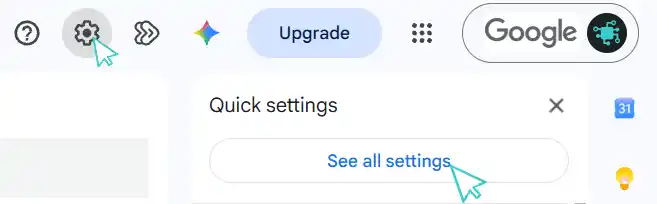
Click the gear icon, then click "See all settings" to open the main dashboard.
Step 3: Paste and Save
- Stay on the General tab and scroll down until you find the Signature section.
- Click + Create new and give it a name (like "Main Signature").
- Click inside the large white text box next to your new signature name.
- Press Ctrl + V (Windows) or Cmd + V (Mac) to paste the signature you copied from our generator earlier.
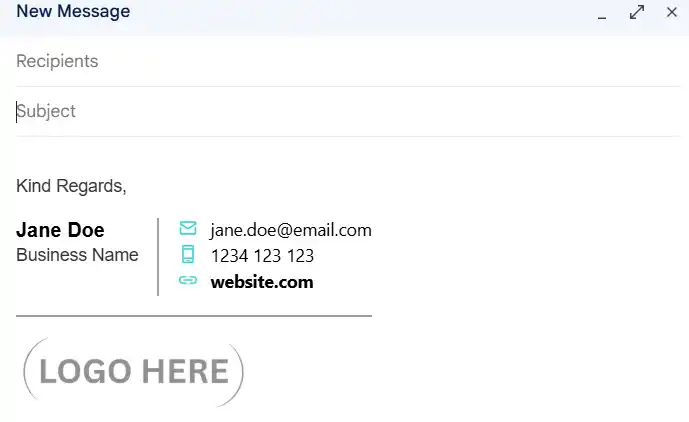
Just paste it directly into the text box. Gmail will automatically read the HTML code.
Step 4: Set Your Defaults
Right below the signature box, you will see a section called Signature defaults. Make sure you select your new signature name from the dropdown menus for both "For new emails use" and "On reply/forward use".
Finally, scroll all the way down to the very bottom of the page and hit Save Changes. You are done! Go click Compose to test it out.
Still having email issues? If your emails are ending up in your clients' spam folders, your DNS records are likely broken. Reach out to Tech-25 to ask about our Managed IT Support, and we will lock down your domain security for you.
(Official documentation can be found on the Google Workspace Support page).